Getting Started with Hikari CS
Welcome to Hikari CS — your AI-powered customer support platform. This guide will help you get up and running quickly so you can start managing conversations and delighting your customers.
What is Hikari CS?
Hikari CS is an intelligent customer support platform that brings all your customer conversations into one unified inbox. With built-in AI assistance, you can respond faster, maintain consistency, and scale your support operations effortlessly.
Key Capabilities
- Unified Inbox — Manage chat, email, and messaging app conversations in one place
- AI-Powered Suggestions — Get intelligent response recommendations generated automatically
- Multi-Channel Support — Connect web widgets, email, Instagram, and Messenger
- Team Collaboration — Assign conversations, add notes, and work together seamlessly
- Analytics & Reporting — Track performance with detailed statistics and insights
- Smart Ticketing — Convert conversations into structured tickets for complex issues
Quick Start Checklist
When you first log in, your Account Overview page shows a setup checklist to help you configure everything:
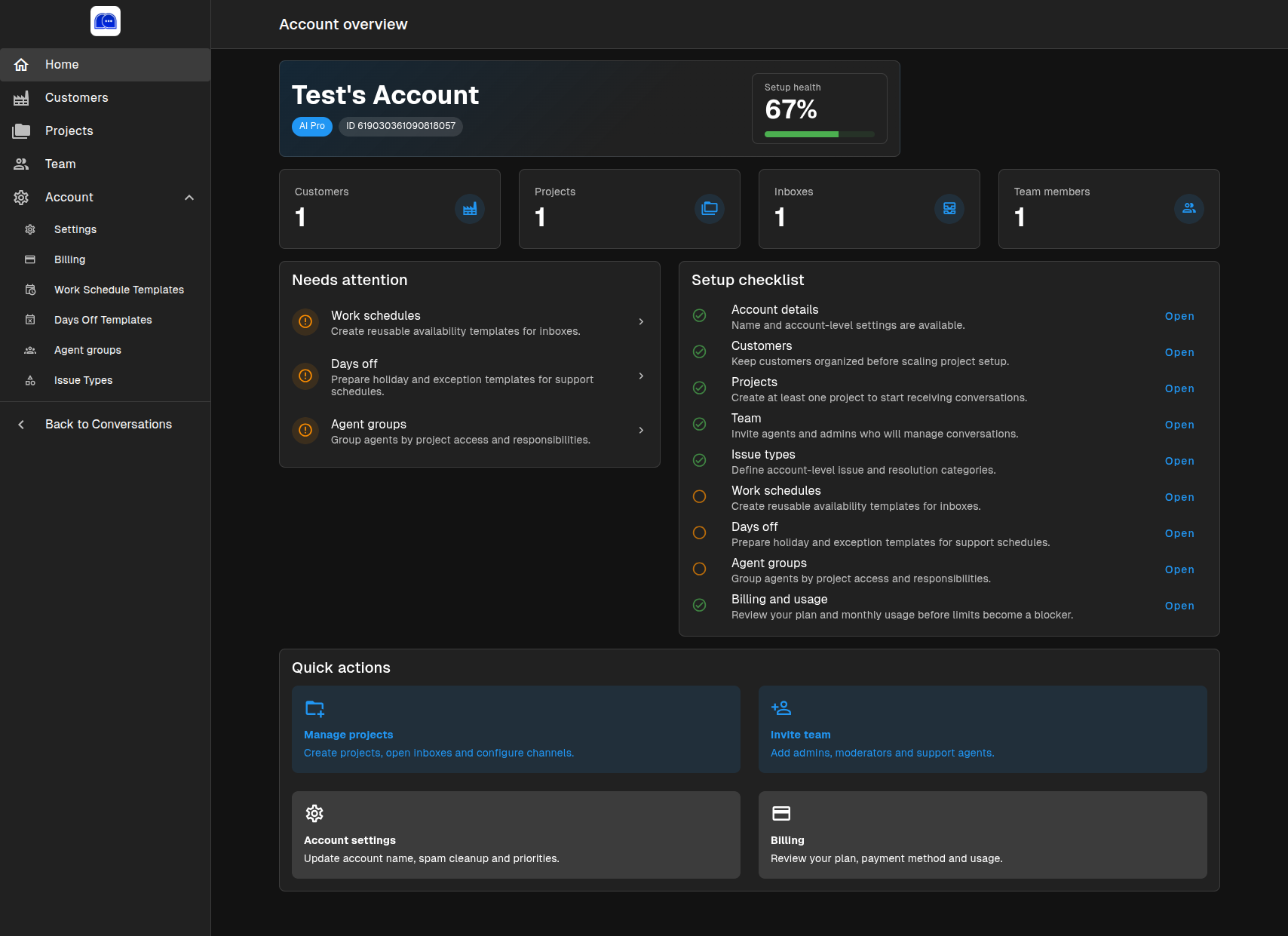
1. Complete Your Account Details
Navigate to Settings → Account Settings to set your account name, spam cleanup preferences, and priority calculation strategy.
2. Add Customers
Go to Account → Customers to organize your clients before creating projects.
3. Create Your First Project
Head to Account → Projects and click + Add project. Each project represents a brand or business unit you support.
4. Set Up an Inbox
Within your project, go to Inboxes and add a channel — such as a Web Widget for your website or an Email inbox.
5. Invite Your Team
Visit Account → Team to invite agents and admins. You can assign roles like Admin, Moderator, or Support Agent.
6. Configure AI Instructions
In your project, navigate to AI related → Instructions to teach the AI about your company, products, and tone of voice.
7. Build Your Knowledge Base
Go to AI related → Knowledge Base to upload articles and documents the AI can reference when answering questions.
Logging In
- Visit your Hikari CS URL
- Enter your email address and click Continue with email
- Enter your password and click Sign in
You can also sign in with Microsoft or Google if your account is configured for SSO.
Your Subscription
Your account comes with an AI Pro subscription, which includes:
- Unlimited conversations
- 10 translation languages
- AI Pro model with advanced capabilities
- Photo recognition
- AI report analysis
You can review and manage your plan anytime under Account → Billing.
Next Steps
- Learn about the Dashboard and how to manage conversations
- Discover the Composer tools for responding to customers
- Explore Statistics to measure your team’s performance
- Dive into Settings to customize your account