Dashboard
The Dashboard is your central hub for managing all customer conversations. When you log in, you land in the conversations view where you can see, filter, and respond to incoming messages.
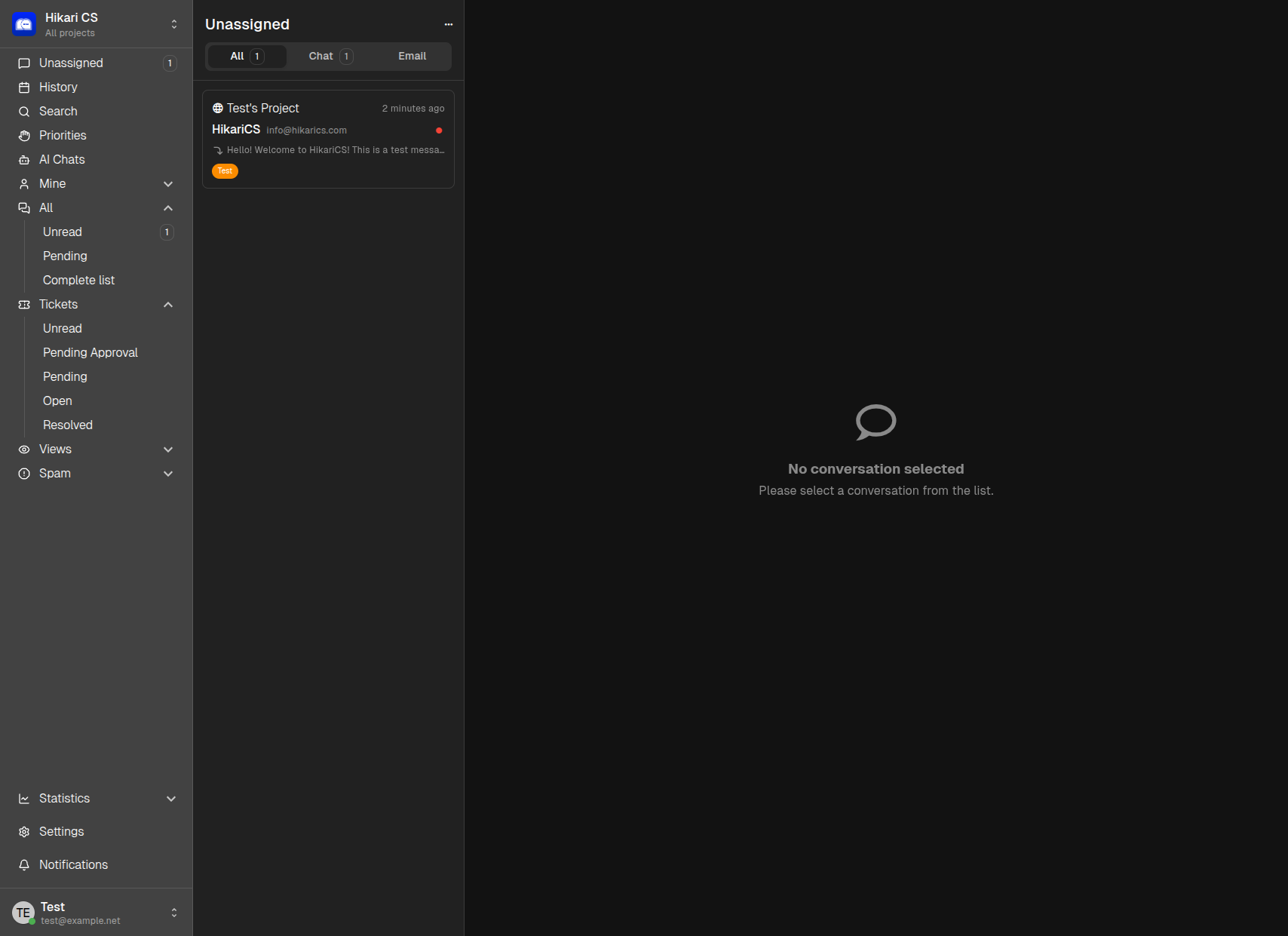
Navigation Sidebar
The left sidebar provides quick access to all conversation views and account sections:
Conversations
| Section | Description |
|---|---|
| Unassigned | Conversations that have not been assigned to any agent yet |
| History | Past conversations for quick reference |
| Search | Find conversations by keyword, customer, or content |
| Priorities | Conversations sorted by urgency and response time priority |
| AI Chats | Conversations where the AI is actively participating |
| Mine / All | Toggle between conversations assigned to you or the entire team |
| Unread | New messages you have not viewed yet |
| Pending | Conversations awaiting a response or action |
| Complete list | Every conversation in the system |
Tickets
Tickets are structured support requests derived from conversations:
| Status | Meaning |
|---|---|
| Unread | New tickets that need attention |
| Pending Approval | Tickets waiting for moderator or admin approval |
| Pending | Tickets awaiting customer response or internal action |
| Open | Active tickets being worked on |
| Resolved | Completed and closed tickets |
Other Views
- Views — Saved custom filters for quick access
- Spam — Messages automatically flagged as spam
Conversation List
The middle panel shows all conversations matching your current filter. Each item displays:
- Project name — Which project the conversation belongs to
- Timestamp — When the last message was received
- Sender — Customer name and email or channel
- Preview — The first line of the latest message
- Agent — Who is assigned to the conversation
You can switch between All, Chat, and Email tabs to filter by channel type.
Conversation Detail
When you select a conversation, the main panel opens the full message thread. Here you can:
- Read the complete conversation history
- See customer and project information
- Use the Composer to draft and send replies
- Apply labels, assign agents, or resolve the conversation
Top Action Bar
Above the message thread, you will find action buttons to:
- Navigate between conversations
- Assign or reassign the conversation
- Mark as resolved
- Access more options via the dropdown menu
Customer Information
The header shows:
- Customer initials and name
- Email address
- Channel (e.g., Web Widget, Email)
- Project name
- Assigned agent
- Language detected in the conversation
Tips for Efficient Dashboard Use
- Use filters — Switch between Mine and All to focus on your workload or oversee the team queue
- Watch Unassigned — Regularly check the Unassigned folder to ensure no customer is left waiting
- Monitor Priorities — The Priorities view helps you tackle the most urgent conversations first
- Check AI Chats — Review AI-assisted conversations to ensure quality and step in when needed