Composer
The Composer is where you craft responses to your customers. It is packed with AI-powered tools, formatting options, and collaboration features to help you reply quickly and professionally.
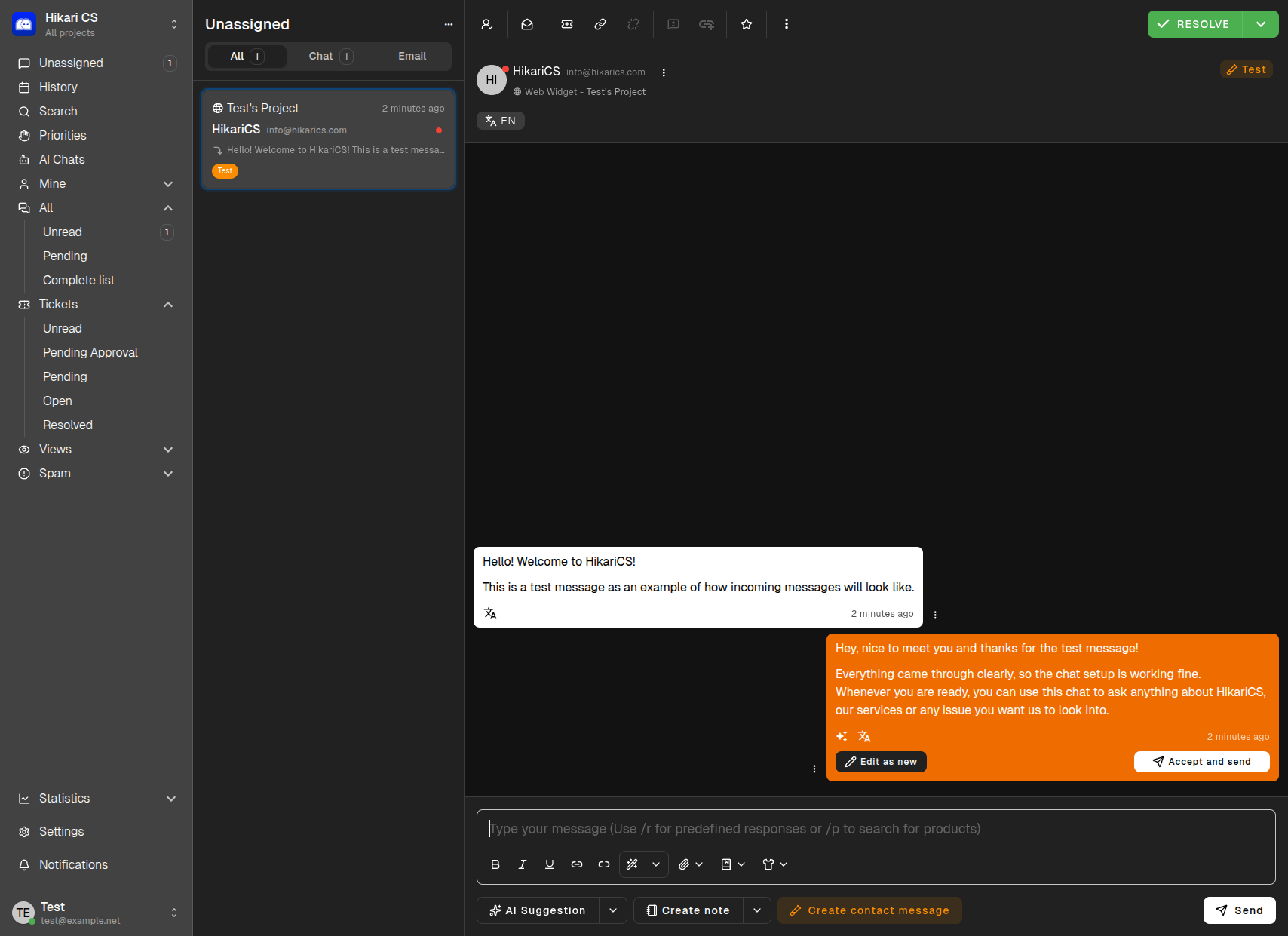
Writing a Message
At the bottom of every conversation, you will find the composer text box. Simply click inside and start typing your response. When you are ready, click the Send button to deliver your message.
Text Formatting
The composer toolbar provides formatting options including:
- Bold, italic, and strikethrough
- Lists (bulleted and numbered)
- Links
- Code blocks
- Quotes
AI Suggestion
One of the most powerful features in Hikari CS is the AI Suggestion button. When a customer sends a message, the AI analyzes the conversation and generates a recommended reply based on:
- Your company’s knowledge base
- Project instructions and tone of voice
- Conversation context and history
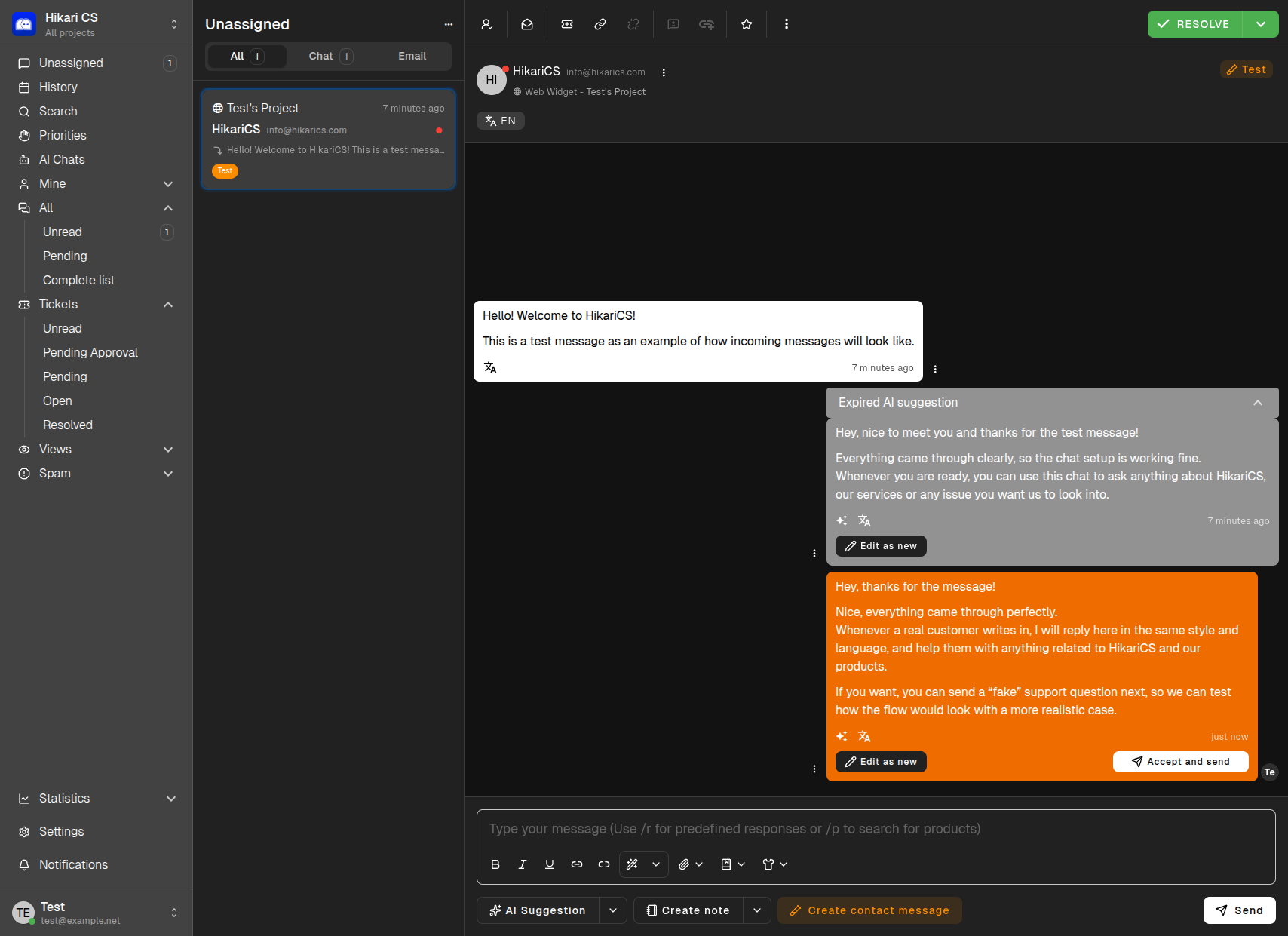
How to Use AI Suggestions
- Click the AI Suggestion button in the composer toolbar
- The AI generates a contextual response
- Choose one of the following actions:
- Accept and send — Immediately send the AI-generated reply
- Edit as new — Copy the suggestion into the composer for editing before sending
- Dismiss — Ignore the suggestion and write your own response
Tip: AI suggestions are especially helpful for common questions, multilingual conversations, and maintaining a consistent brand voice across your team.
Create Note
Use the Create note button to add internal comments visible only to your team. Notes are perfect for:
- Leaving context for other agents
- Recording decisions or escalations
- Adding reminders about follow-up actions
Create Contact Message
The Create contact message option lets you send a message directly to the customer’s contact record, separate from the main conversation thread.
Additional Composer Tools
Emoji and Attachments
Insert emoji reactions or attach files to your messages using the toolbar buttons.
Translation
If your project supports multiple languages, the composer can help translate messages. The AI Pro plan includes support for up to 10 translation languages.
Language Detection
Hikari CS automatically detects the language of incoming messages and can translate both incoming and outgoing messages based on your project settings.
Keyboard Shortcuts
While working in the composer, you can use standard text editing shortcuts:
| Action | Shortcut |
|---|---|
| Send message | Enter (or Ctrl+Enter depending on settings) |
| New line | Shift+Enter |
| Bold | Ctrl+B |
| Italic | Ctrl+I |
Best Practices
- Review AI suggestions — Always read AI-generated replies before sending to ensure accuracy
- Use notes for context — Help your teammates by documenting important details internally
- Maintain tone consistency — Use the project’s AI instructions to keep responses aligned with your brand
- Leverage translations — Let the AI handle language barriers so you can focus on solving problems